Users and Accounts
Account Management
To access the HPC resources, you must request the creation of a personal account through the dedicated portal. Registration is carried out exclusively via the account management web page.
Accessing the Registration Page
By accessing the following page: Grid account, you will be redirected to the account registration screen, to create a new account, you must complete the following fields:
Connect to the ENEAGRID portal.
Select the “new account” option from the main menu.
The account request form will be displayed:
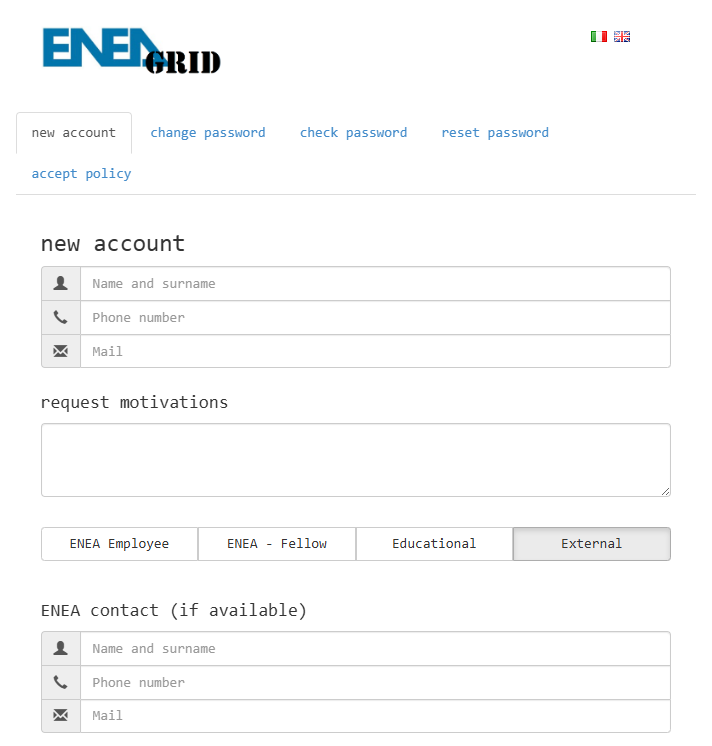
In the new account section, you are required to complete the following fields:
Name and surname – Enter your full name.
Phone number – Enter a valid phone number.
Mail – Enter an active institutional or personal email address.
In the request motivations field, you are required to clearly describe:
The project or activity for which access is being requested.
The research group or organizational unit you belong to (if applicable).
Subsequently, you must select one of the following categories:
ENEA Employee – ENEA staff members
ENEA–Fellow – ENEA fellows or research grant holders
External – Users not affiliated with ENEA
In addition, if applicable, complete the ENEA contact section by providing:
Full name of the ENEA contact person
Phone number
Email address
Note
This information is mandatory for external users. Please read the following information carefully before proceeding.
Password Change
The change password feature allows users to independently update their password through the ENEA GRID portal. To access the password change page:
Select the “change password” option from the main menu.
The credential update screen will be displayed.
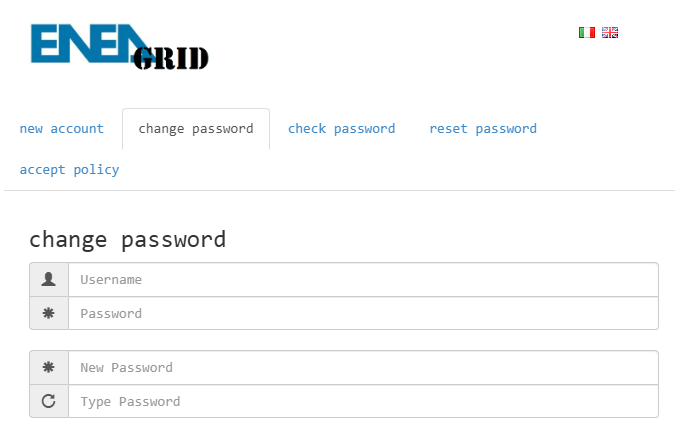
On the change password page, you must fill in the following fields:
Username – Enter your HPC username.
Password – Enter your current password.
New Password – Enter your new password.
Type Password – Re-enter the new password for confirmation.
Note
The new password must comply with the HPC infrastructure security policies, which may include:
Minimum length requirements ten characters
At least one uppercase character from [A-Z]
At least one lowercase character from [a-z]
At least one number from [0-9]
At least one special character from [!@#%^&*-._]
Password Reset
The reset password feature allows users to request a password reset in case it has been forgotten or is no longer valid.
To access the password reset page:
Select the “reset password” option from the main menu.
The password reset request page will be displayed.
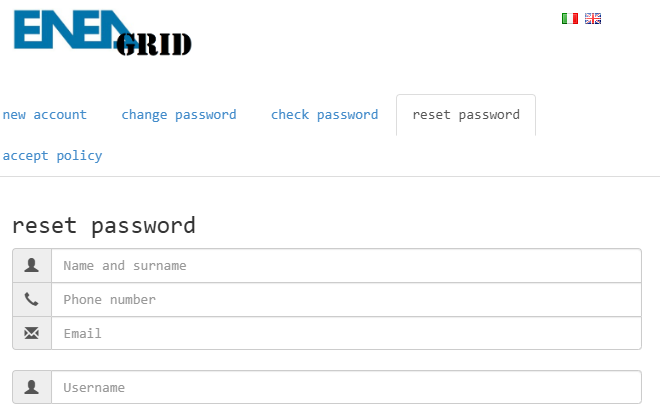
On the reset password page, you must fill in the following fields:
Name and surname – Enter your full name.
Phone number – Enter the phone number associated with your account.
Email – Enter the email address used during registration.
Username – Enter your HPC username.
All information must match the data provided during account creation.
Note
For change the password you can use the command kpasswd