Warning
The method of accessing the system may change in the future. The documentation will be updated as soon as possible.
Access to System
The CRESCO HPC system can be accessed through two main methods:
Command-line access via SSH
Web-based access through Open OnDemand
Both methods require username and password credentials.
SSH Access
SSH access is the standard method for working in an HPC environment, running batch jobs, compiling codes, and managing files.i
Login Nodes
To access CRESCO, use one of the following endpoints:
ssh <username>@cresco-in.portici.enea.it
or
ssh <username>@cresco-in.frascati.enea.it
After authentication, the system will display information about the available nodes and the working environment.
Available Front-End Nodes
Front-end nodes are used to work on the system (e.g. managing files or submitting jobs).
Access depends on the network:
From the ENEA internal network, users can directly connect to front-end nodes using their hostname;
From external networks, users must first connect to the CRESCO login nodes (
cresco-in) and then access the desired front-end node.
For example, when using MobaXterm from the ENEA network, the front-end hostname can be used directly as the remote host. From external networks, it is necessary to first connect to cresco-in.
Site |
Front-end node |
Node Type |
|---|---|---|
Portici |
|
Front-end |
Portici |
|
Interactive |
Portici |
|
Front-end |
Portici |
|
Interactive |
Portici |
|
Font-end |
Portici |
|
Interactive |
Portici |
|
Interactive |
Portici |
|
Interactive |
Portici |
|
Interactive |
Frascati |
|
Front-end and Interactive |
Frascati |
|
Front-end |
Frascati |
|
Interactive |
Casaccia |
|
Front-end and Interactive |
Access from Linux / macOS
On Linux and macOS systems the SSH client is available by default.
Open a terminal.
Type:
ssh <username>@cresco-in.portici.enea.it
or
ssh <username>@cresco-in.frascati.enea.it
Enter your password when prompted.
After successful authentication, users will be connected to a CRESCO login node where they can compile codes, manage files, and submit jobs to the scheduler.
Access from Windows
POWERSHELL
On Windows 10/11, the built-in SSH client is available.
Open PowerShell
Type:
ssh <username>@cresco-in.portici.enea.it
Enter your password when prompted.
Note
The built-in Windows SSH client does not support X11 forwarding. Applications requiring a graphical interface cannot be displayed.
MOBAXTERM
MobaXterm is a SSH client for Windows that provides a built-in X11 server, making it particularly suitable for accessing graphical applications on CRESCO.
Download MobaXterm from: https://mobaxterm.mobatek.net
To connect:
Open MobaXterm
Click on “Session” → “SSH”
Enter the remote host:
cresco-in.portici.enea.it
Specify your username
Select the front end
Start the session
Access via Open OnDemand
Open OnDemand is the web interface that allows users to access and use the CRESCO HPC system through a web browser, without directly using the command line. Through Open OnDemand it is possible to:
manage files in the user’s AFS home directory
monitor and manage running or queued jobs
open interactive terminal sessions on login nodes
launch interactive scientific applications
access remote desktop environments
The service is available at the following address: https://cresco-ondemand.portici.enea.it
After authentication using credentials the main dashboard of the portal is displayed.
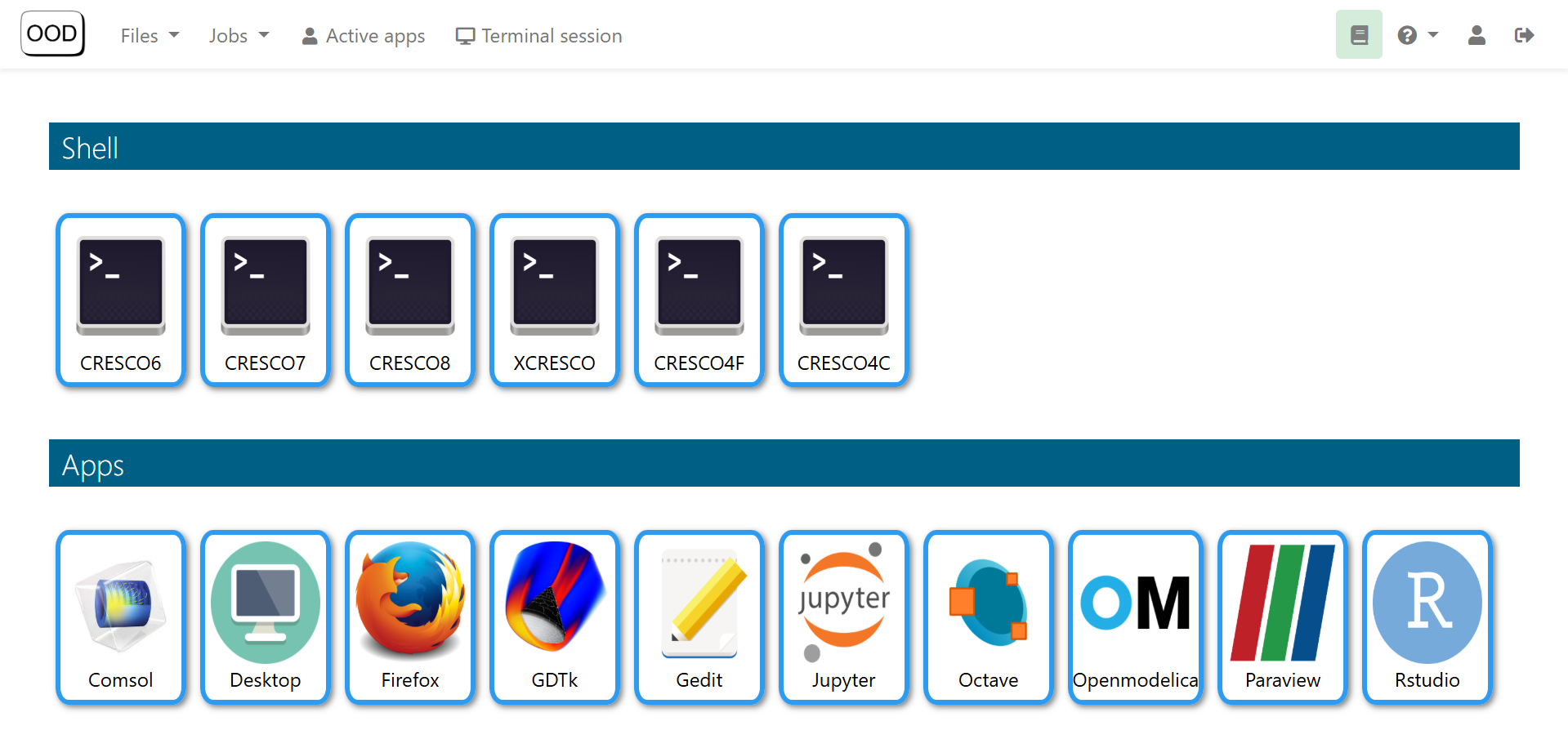
Open OnDemand Interface
From the main dashboard users can access the available services through the top navigation menu.
Terminal sessions
The Terminal Sessions section allows users to open interactive shell sessions on the CRESCO login nodes directly from the browser.
Available terminals correspond to the different CRESCO systems, including:
CRESCO6
CRESCO7
CRESCO8
XCRESCO
CRESCO4F
CRESCO4C
These terminals provide a standard Linux shell environment and can be used in the same way as a normal SSH connection (e.g. compiling codes, submitting jobs, or managing files).
Interactive applications
The Apps section allows users to start interactive applications running on the cluster and access them through the browser.
Examples of available applications include:
Comsol
Jupyter
Paraview
RStudio
Octave
OpenModelica
Firefox
Gedit
remote desktop sessions
Session monitoring
At the top of the interface two useful indicators are available:
Active Apps, which shows currently running interactive applications
Terminal Sessions, which lists active terminal sessions that can be reopened.
Note
For more information about the Open OnDemand interface and available services: CRESCO-ONDEMAND documentation
Access via kerberos token
You can also access the system by creating a Kerberos ticket, following the installation procedure on this page